How to Make a CV on Your Phone: Step by Step, Save as PDF and Send It
You do not need a laptop to make a good CV. How to build one on your phone, save it as a PDF and send it, on Android or iPhone.

Alexander Phillip
Career Coach and Recruitment Expert
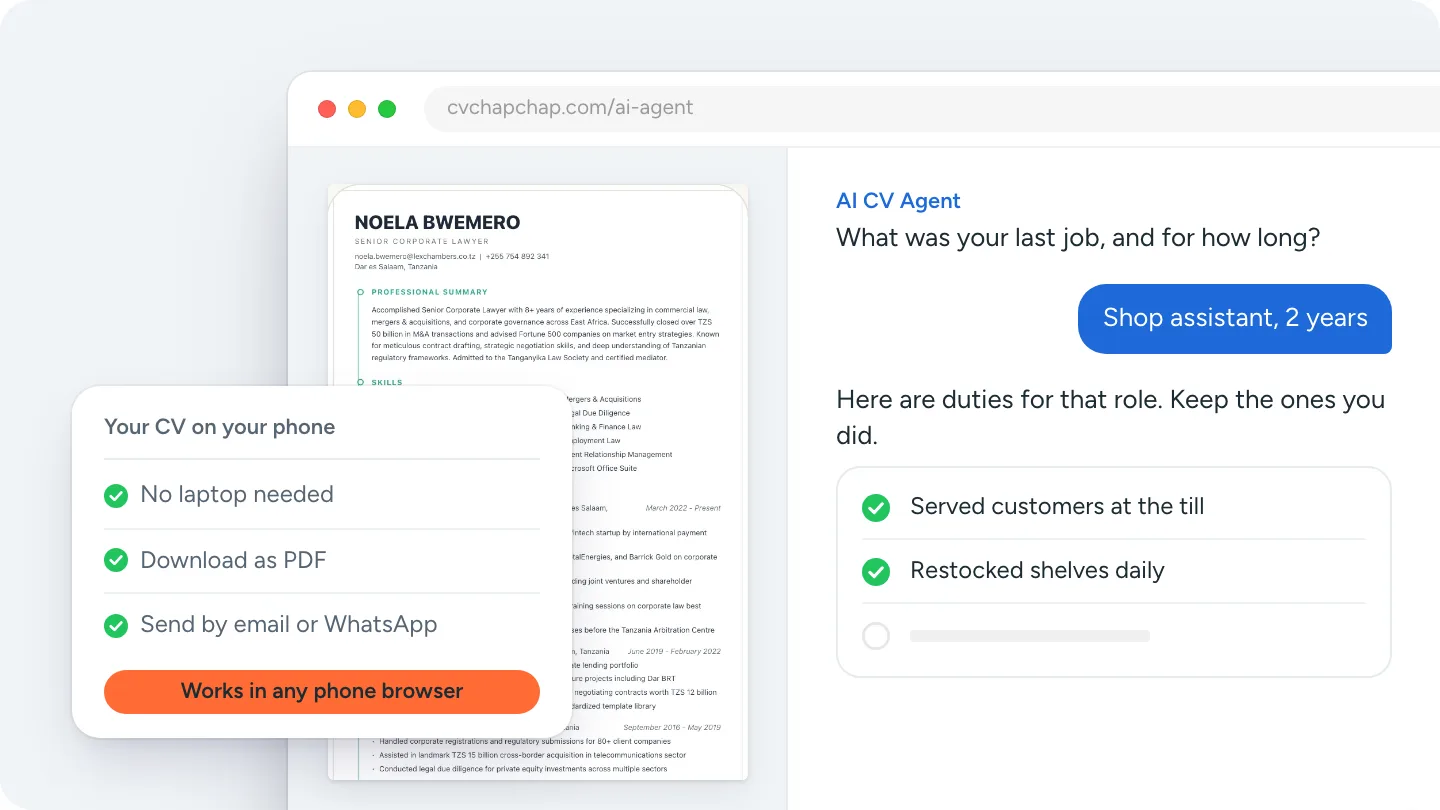
Short answer: to make a CV on your phone, open a CV builder made for phones in your browser, such as CV Chap Chap, fill in each section (contact details, work, education, skills), pick a design, preview the whole CV and download it as a PDF. Then send the PDF by email, WhatsApp or an online job form. It works on Android and iPhone, with no laptop and no app needed.
This guide on how to make a CV on your phone walks through every step, from the first tap to sending the file.
Can you make a good CV on a phone?
Yes. Typing a CV into a phone's notes app or a document editor is painful, because layouts break on a small screen. A CV builder fixes that: you only type the words, one section at a time, and the design is done for you. CV Chap Chap was built phone first for exactly this reason.
How to make a CV on your phone, step by step
Step 1: Open the builder
Go to cvchapchap.com in Chrome, Safari or any phone browser. You can add it to your home screen so it opens like an app; the CV maker app page shows how on Android and iPhone.
Step 2: Choose how to start
- Step by step: pick a design from the CV templates and fill in each section.
- By chat: the AI CV Agent asks you questions one at a time and writes the CV with you. Easiest on a small keyboard.
- From an old CV: upload a PDF or Word file, or take a photo of a paper CV in the AI CV Agent.
Step 3: Add your details
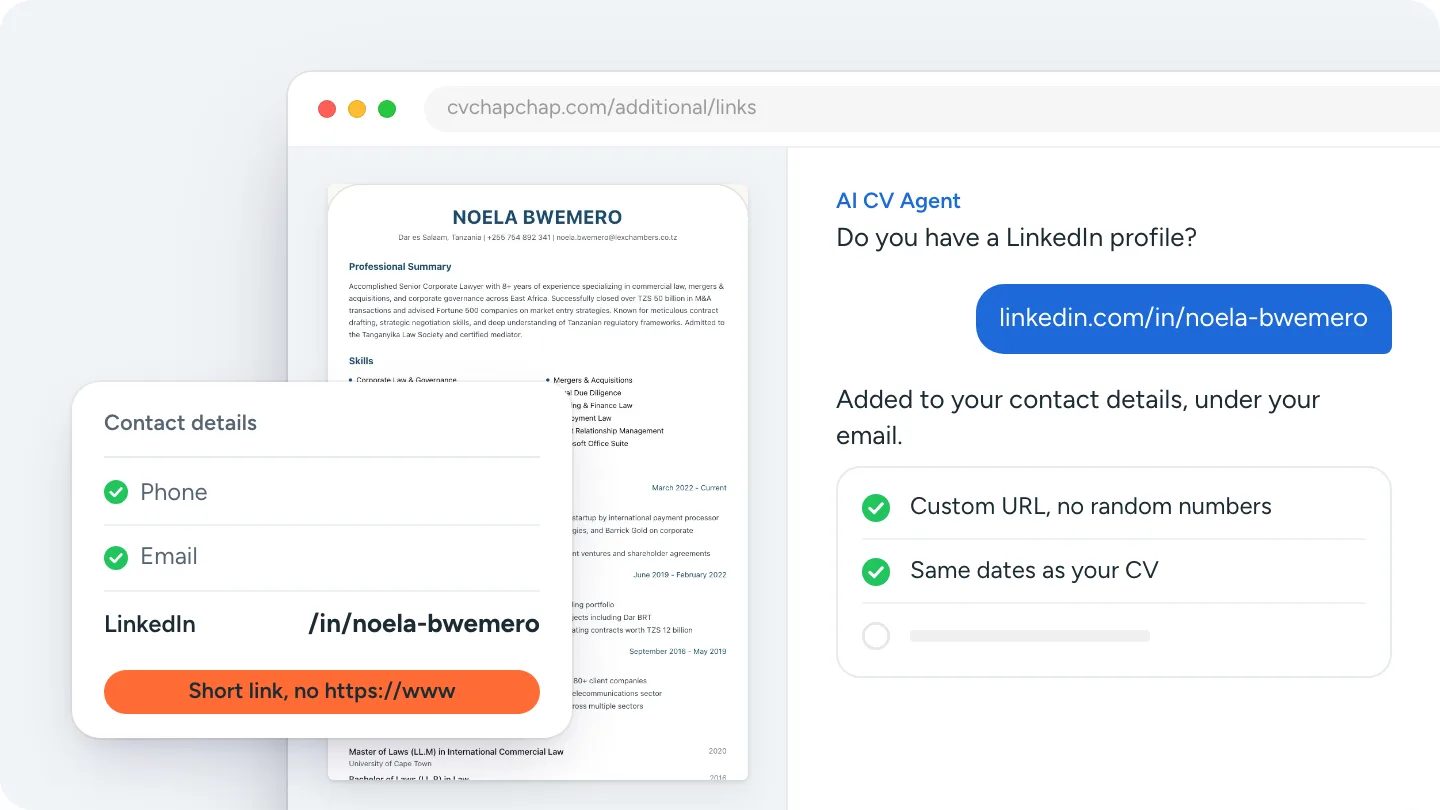
Your name, phone number with the country code, email and town. Then each job with its dates and what you did; tap the suggested duties for your job title to save typing. Then education, skills and languages.
Step 4: Write a short profile
Two or three lines about who you are and the job you want. You get help with the wording, built only from what you entered.
Step 5: Preview the whole CV
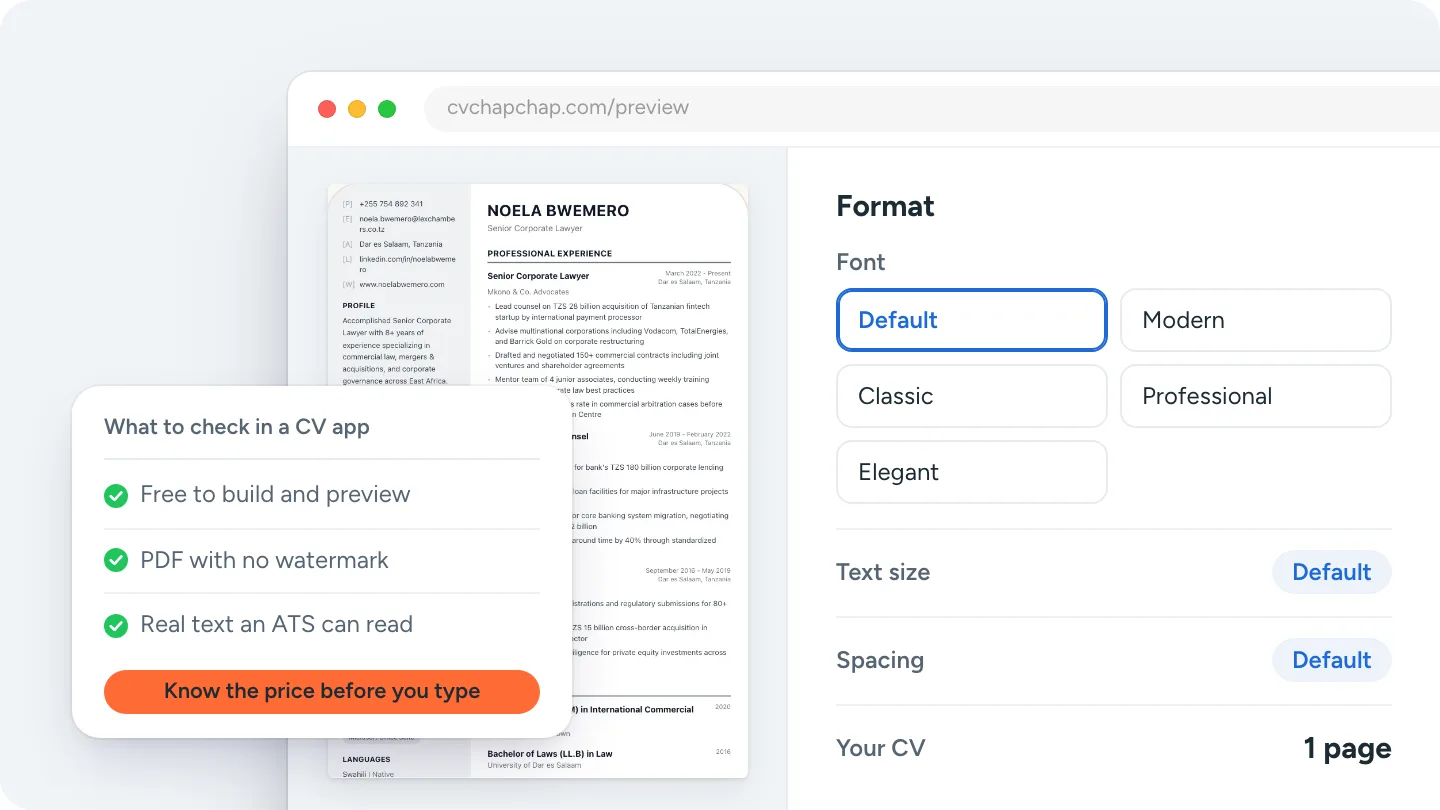
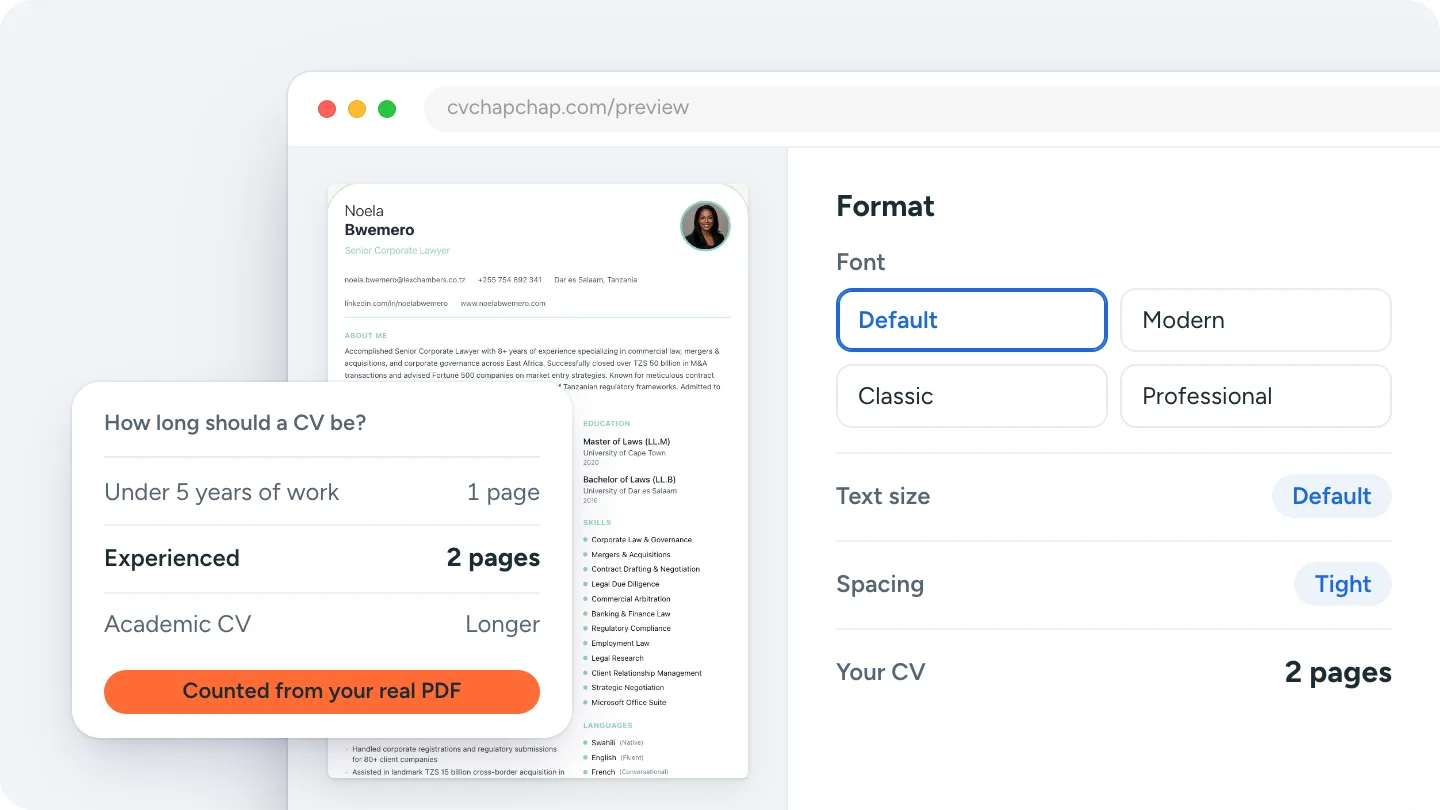
See every page exactly as it will print, free. Change the design, colour, font or spacing until it looks right, and check the page count.
Step 6: Download it as a PDF
Download the PDF (and a Word copy if an employer asks for Word). It saves to your phone's Downloads or Files. Downloading is the one paid step: a single payment, with no subscription.
How to save a CV as a PDF on your phone
Where does the PDF go?
On Android it lands in Downloads (open the Files app). On iPhone, Safari saves it to Files, in Downloads, or offers a share sheet where you can choose Save to Files.
Already have a CV in Word or Google Docs on your phone?
In Google Docs use Share and export, then Save as, then PDF. In Word for Android or iPhone use the menu, then Export or Save as, then PDF. Or upload the file to a CV builder and download a cleaner PDF.
How to send your CV from your phone
- By email: open your email app, write a short message (or paste a cover letter), tap the paperclip and pick the PDF from Downloads or Files. Name the file with your name, such as Noela_Bwemero_CV.pdf.
- By WhatsApp: in the chat tap the attach icon, choose Document and pick the PDF, so it arrives as a file and not a blurry photo.
- Online forms and LinkedIn: tap Upload and pick the PDF. See how to upload your CV to LinkedIn.
Need a cover letter for the same job? The cover letter generator is free and works on your phone too.
Ready to start on your phone? Build your CV with the AI CV Agent.
Tips for making a CV on a small screen
- Write your job history in your notes app first if you are on a slow connection, then paste it in.
- Use the chat builder or suggested duties so you type less.
- Preview before you download: check dates, spelling and the page count.
- Check the finished file with the free ATS CV checker.
Which app should I use to make a CV on my phone?
Any good CV maker that lets you build and preview the whole CV before you pay, gives you a PDF with no watermark and uses a layout screening software can read. We compare the main options in the best CV maker apps for 2027.
That is how to make a CV on your phone: a builder made for phones, a preview before you download, a PDF in your files, and a few taps to send it.
Frequently Asked Questions
How can I make a CV on my phone for free?
Use a CV builder in your phone browser, such as CV Chap Chap: building and previewing your CV are free. Fill in each section, pick a design and preview the whole CV before you decide to download.
Can I make a CV on my phone without an app?
Yes. CV Chap Chap works in Chrome, Safari or any phone browser, and you can add it to your home screen so it opens like an app.
How do I save my CV as a PDF on my phone?
Download the PDF from your CV builder; on Android it goes to Downloads, on iPhone to Files. In Google Docs or Word, use Save as or Export and pick PDF.
How do I send my CV from my phone?
Attach the PDF to an email with the paperclip, send it as a Document in WhatsApp, or tap Upload on an online job form and pick the file.
Can I make a CV on an Android phone?
Yes. Open cvchapchap.com in Chrome, build the CV step by step or by chat, and download the PDF to your Downloads folder.
Can I make a CV on my iPhone?
Yes. Open cvchapchap.com in Safari, build and preview the CV, and download the PDF to Files. You can add it to your home screen from the Share button.
Ready to Create Your Professional CV?
Put these tips into practice. Build a stunning, ATS-friendly CV in under 3 minutes with CV Chap Chap.
Create Your CV Now