How to Upload Your CV to LinkedIn: Easy Apply, Your Profile and Your Phone
Upload your resume to LinkedIn the right way: in your job application settings for Easy Apply, on your profile for everyone to see, or from the LinkedIn app on your phone.

Alexander Phillip
Career Coach and Recruitment Expert
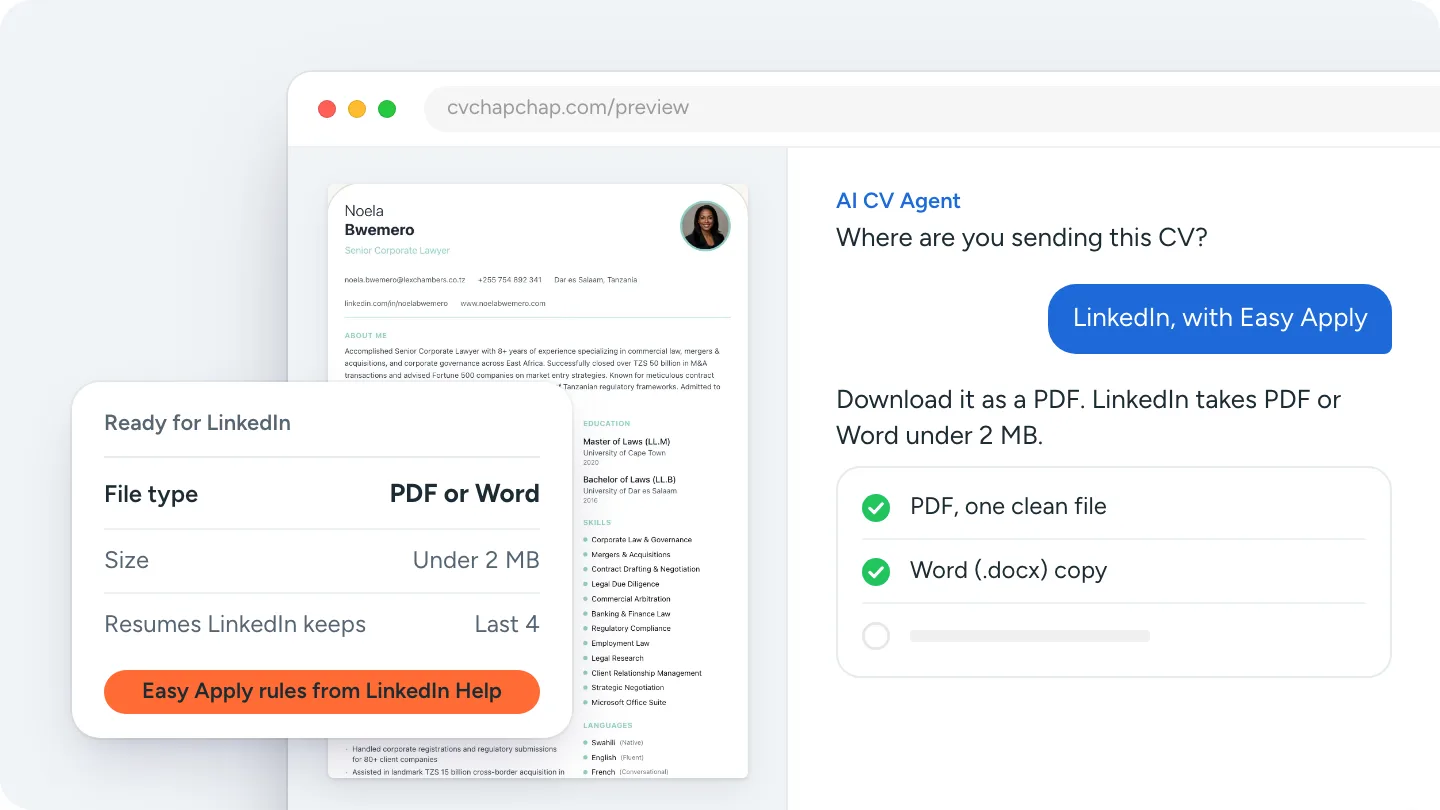
Short answer: to upload your CV to LinkedIn for job applications, open the Jobs tab, go to Preferences, then Resumes and application data, and tap Upload. You can also upload a resume inside any Easy Apply application. LinkedIn takes a PDF or Word file under 2 MB and keeps your four most recent resumes. To show your CV on your profile instead, add it to the Featured section.
This guide on how to upload a resume to LinkedIn covers the three places a CV can go, the steps on a computer and on your phone, and what to check before you press upload. The steps follow LinkedIn's own Help pages as of November 2026.
Where can you add a resume on LinkedIn?
There are three places, and they do different jobs:
- Job application settings (private). Saved for Easy Apply. Only the employers you apply to see it.
- Inside one Easy Apply application (private). Sent to that one employer, and saved to your recent resumes.
- Your profile's Featured section (public). Anyone who opens your profile can see and download it.
LinkedIn keeps these apart: a resume added to your profile cannot be picked for a job application, and a resume saved for applications does not appear on your profile.
How to upload a resume to LinkedIn for Easy Apply
How do I save a resume for Easy Apply?
Save it in your job application settings and it is ready for every Easy Apply job.
- Open LinkedIn and select the Jobs tab.
- Select Preferences, then Resumes and application data.
- Under Resume, select Upload and choose your PDF or Word file.
How do I upload a resume while applying?
Press Easy Apply on the job, fill in the required fields, and under Resume choose Upload resume, then submit. LinkedIn sends that file to the hirer and adds it to your saved resumes.
What file does LinkedIn accept?
A Microsoft Word file or a PDF, smaller than 2 MB. LinkedIn stores your four most recently uploaded resumes, so you can keep one general CV and a few versions aimed at different jobs. A CV from CV Chap Chap's templates downloads as both a PDF and a Word file, and a one or two page PDF is far below the 2 MB limit.
How to add your resume to your LinkedIn profile
How do I put my CV on my LinkedIn profile?
Add it to the Featured section as media.
- Select Me, then View profile.
- Select Add profile section, then Recommended, then Add featured.
- Choose Add media, pick your PDF, give it a clear title such as "Noela Bwemero, CV 2026", and save.
Should I post my CV publicly on LinkedIn?
Only a version made for the public. A CV in your Featured section can be downloaded by anyone who views your profile, so remove your phone number, home address, date of birth and ID numbers first, and keep the email you use for job hunting. Most people are better off keeping the full CV private for applications and letting the profile itself do the public work.
How to upload a resume to LinkedIn on your phone
In the LinkedIn app, tap Jobs, then the menu for your preferences, then Resumes and application data, and upload the file from your phone's Downloads or Files. During Easy Apply, tap Upload resume and pick the file the same way. If you built your CV on your phone, download it as a PDF first so it is sitting in your files; our guide on how to make a CV on your phone shows the whole route.
Before you upload: make the CV and the profile agree
Recruiters read your CV and then open your profile to check it. Make sure the job titles, employers and dates are the same in both, and that your CV carries your profile link (see how to add LinkedIn to your CV). If your profile is more complete than your CV, you can turn it into a CV with the LinkedIn resume builder: save your profile as a PDF from LinkedIn and upload it, and your sections drop into a clean design you can edit.
Then run the finished file through the free ATS CV checker: many employers who post on LinkedIn also screen CVs with an applicant tracking system.
No CV yet, or one that needs work? Build your CV with the AI CV Agent.
Is a resume on LinkedIn enough?
No. Your LinkedIn profile is not a CV. Employers decide on the CV you send for their job; the profile is where they confirm your history and see how you present yourself. Keep both, keep them consistent, and aim the CV at each job with the words from the advert, as in our guide to tailoring your CV for every application.
That is how to upload your CV to LinkedIn: a private copy in your job application settings for Easy Apply, a public, trimmed copy in Featured if you want one, and a profile that matches both.
Frequently Asked Questions
How do I upload my resume to LinkedIn?
Open the Jobs tab, select Preferences, then Resumes and application data, and select Upload. You can also upload a resume inside an Easy Apply application. Use a PDF or Word file under 2 MB.
How do I add my resume to my LinkedIn profile?
Go to your profile, select Add profile section, then Recommended, then Add featured, choose Add media and upload your PDF. Anyone who views your profile can see it, so remove private details first.
What file size and format does LinkedIn accept for a resume?
Microsoft Word or PDF, smaller than 2 MB, according to LinkedIn Help.
How many resumes can I save on LinkedIn?
LinkedIn keeps your four most recently uploaded resumes for job applications.
Can recruiters see the resume I uploaded to LinkedIn?
A resume uploaded for applications is shared only with the employers you apply to. A resume added to your profile's Featured section is visible to anyone who views your profile.
Can I upload a resume from the LinkedIn app on my phone?
Yes. In the app, open Jobs, your preferences, then Resumes and application data, and upload the file from your phone. You can also upload one during Easy Apply.
Ready to Create Your Professional CV?
Put these tips into practice. Build a stunning, ATS-friendly CV in under 3 minutes with CV Chap Chap.
Create Your CV Now